Salesforce Location Entity Resolution Upgrade Guide
Last updated: July 22, 2026
Questions? Contact [email protected]
This guide explains how to upgrade an existing DataLane Salesforce Accounts Based matching configuration to Accounts + Locations. DataLane will be able to write a DataLane Location ID field alongside the existing DataLane Account ID field.
What to expect
Existing CRM matching field mappings are preserved.
Existing campaign CRM exclusions continue to apply.
DataLane starts a new full initial matching run after the upgrade.
CRM syncs are unavailable until that initial match finishes.
You do not need to create a new Salesforce destination or reconnect OAuth.
1 Open your Salesforce matching configuration
In DataLane, go to Setup → Destinations.
Open your existing Salesforce destination.
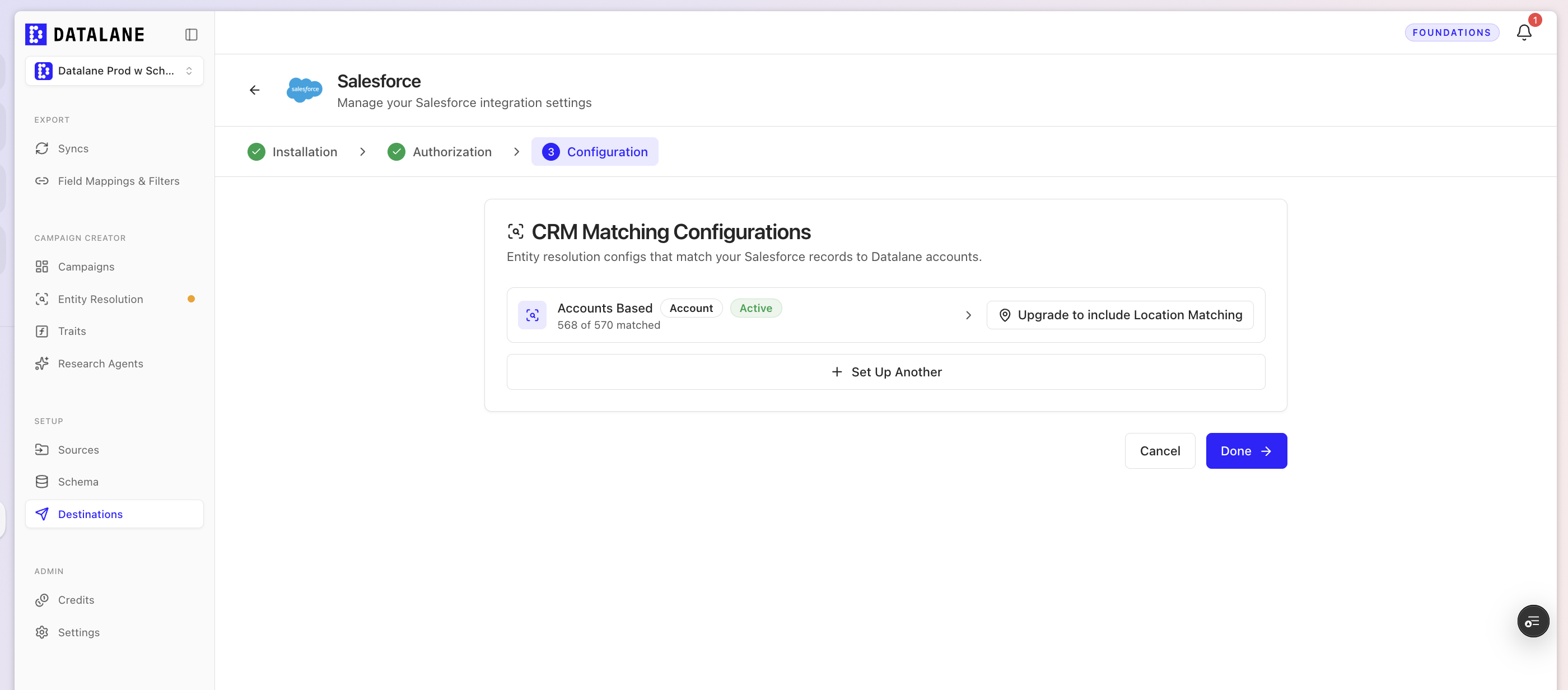
Under CRM Matching Configurations, find your Accounts Based configuration.
Click Upgrade to include Location Matching.
2 Review the upgrade requirements
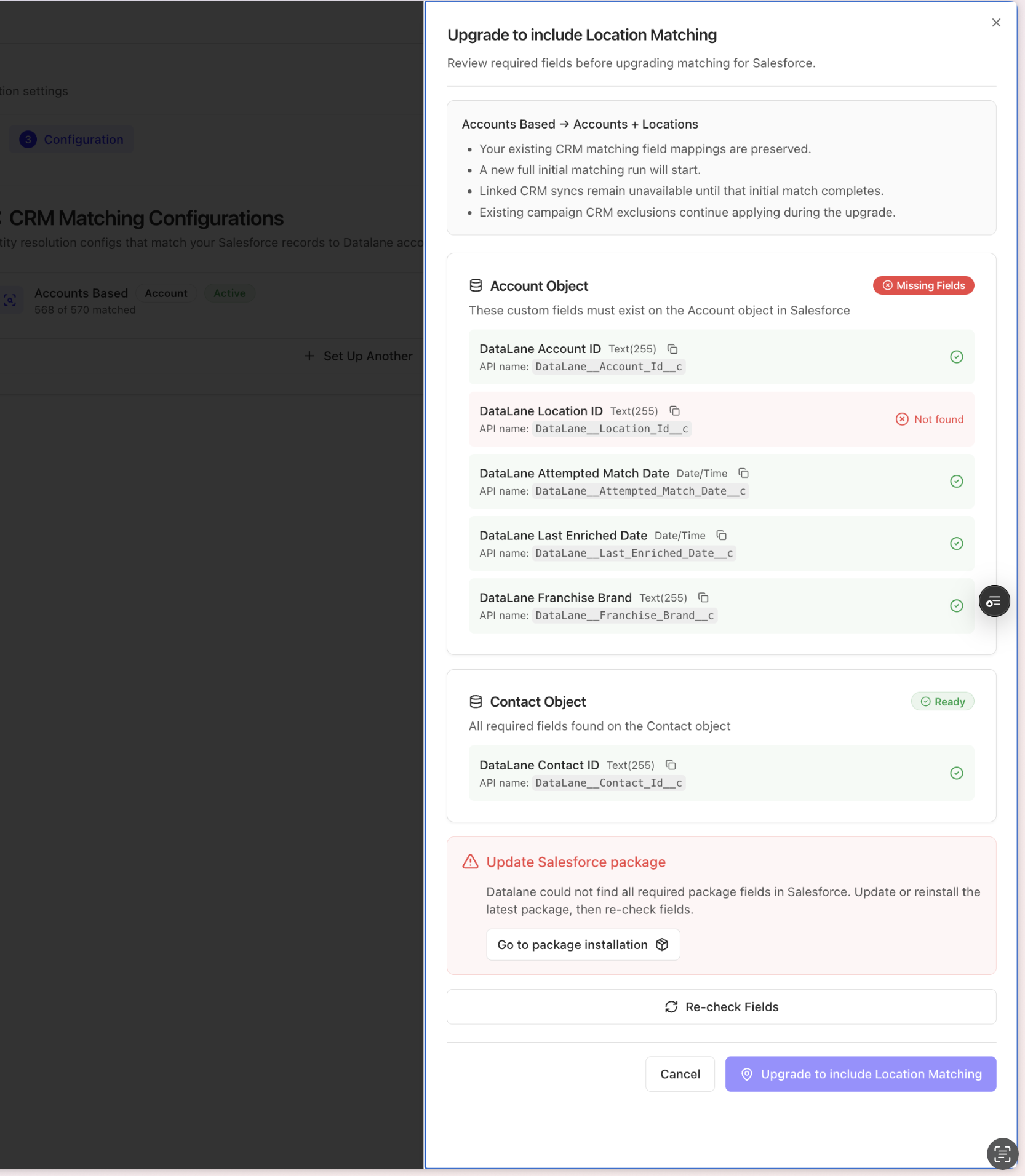
DataLane opens an upgrade panel showing the change:
Accounts Based → Accounts + Locations
The panel checks that Salesforce has the required DataLane managed fields, including the new DataLane Location ID field on Accounts.
If every field is marked Ready, skip to Step 5.
If DataLane shows Missing Fields, continue to Step 3.
3 Open the Salesforce package upgrade
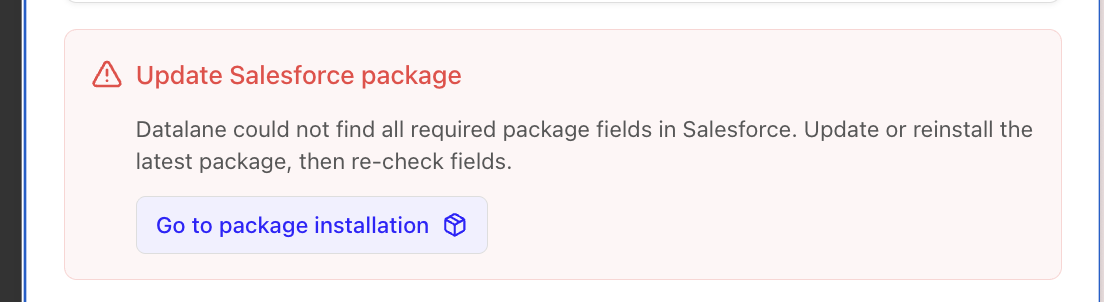
In the DataLane upgrade panel, click Go to package installation.
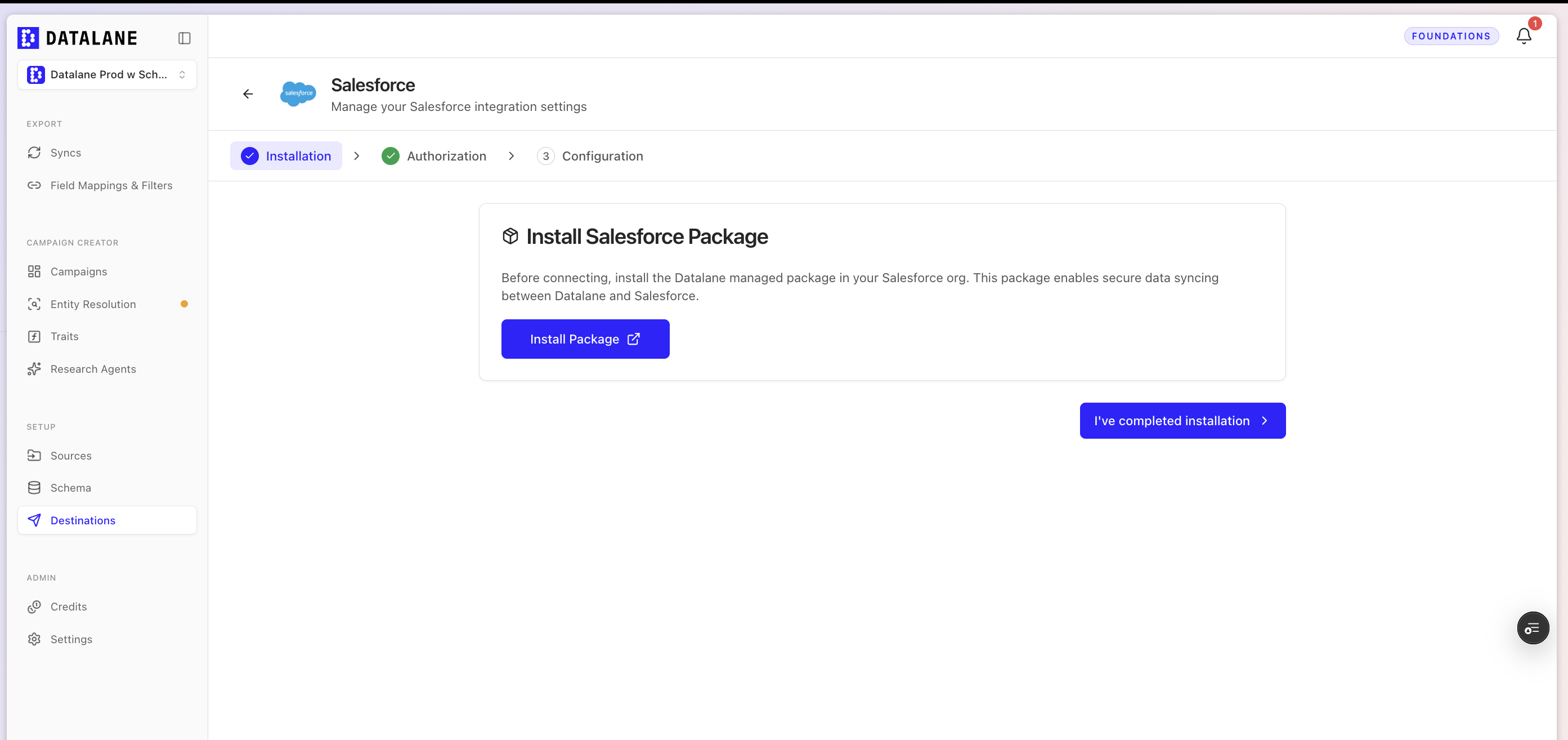
Click Install Package.
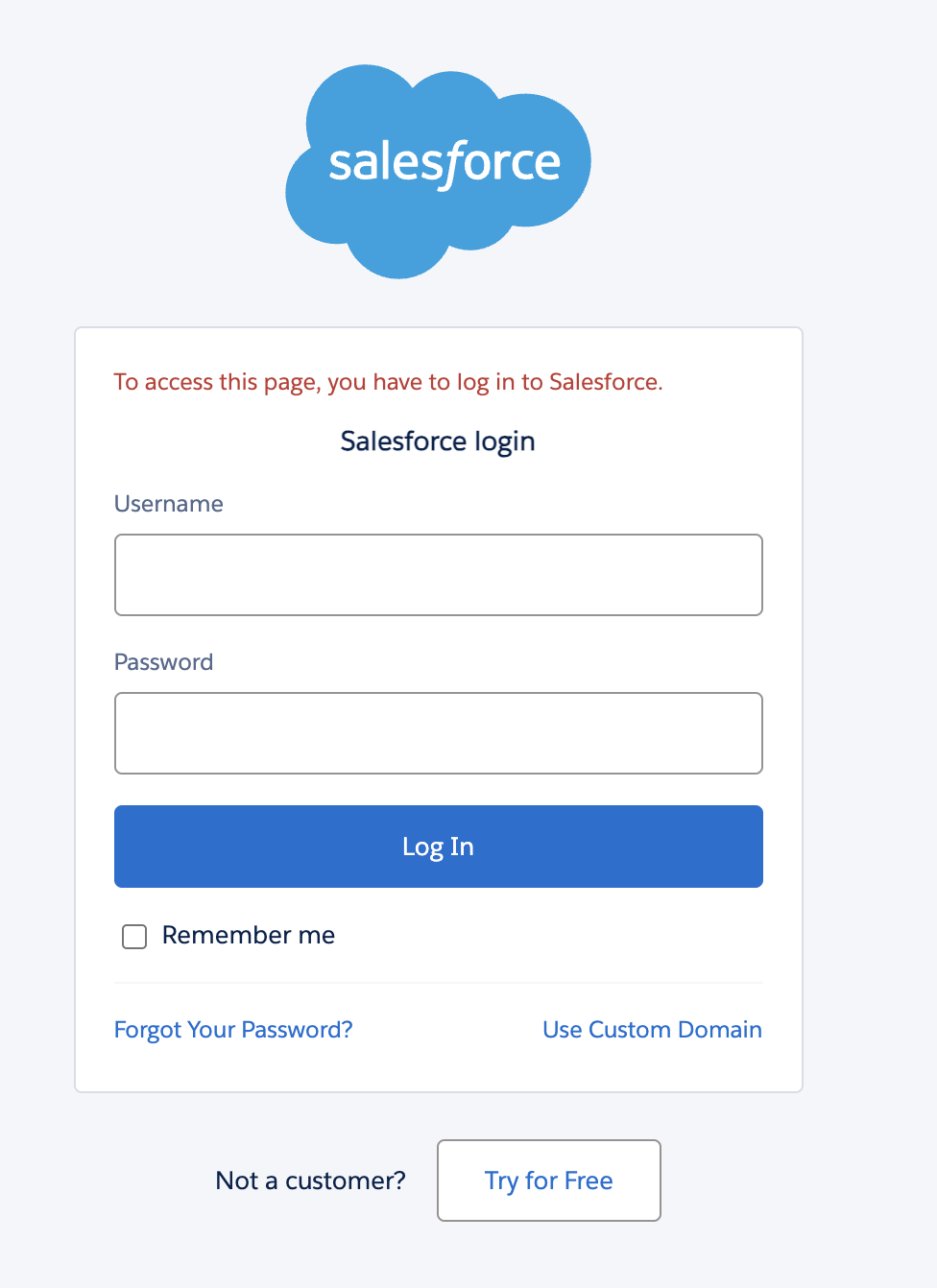
log in to Salesforce as a System Administrator.
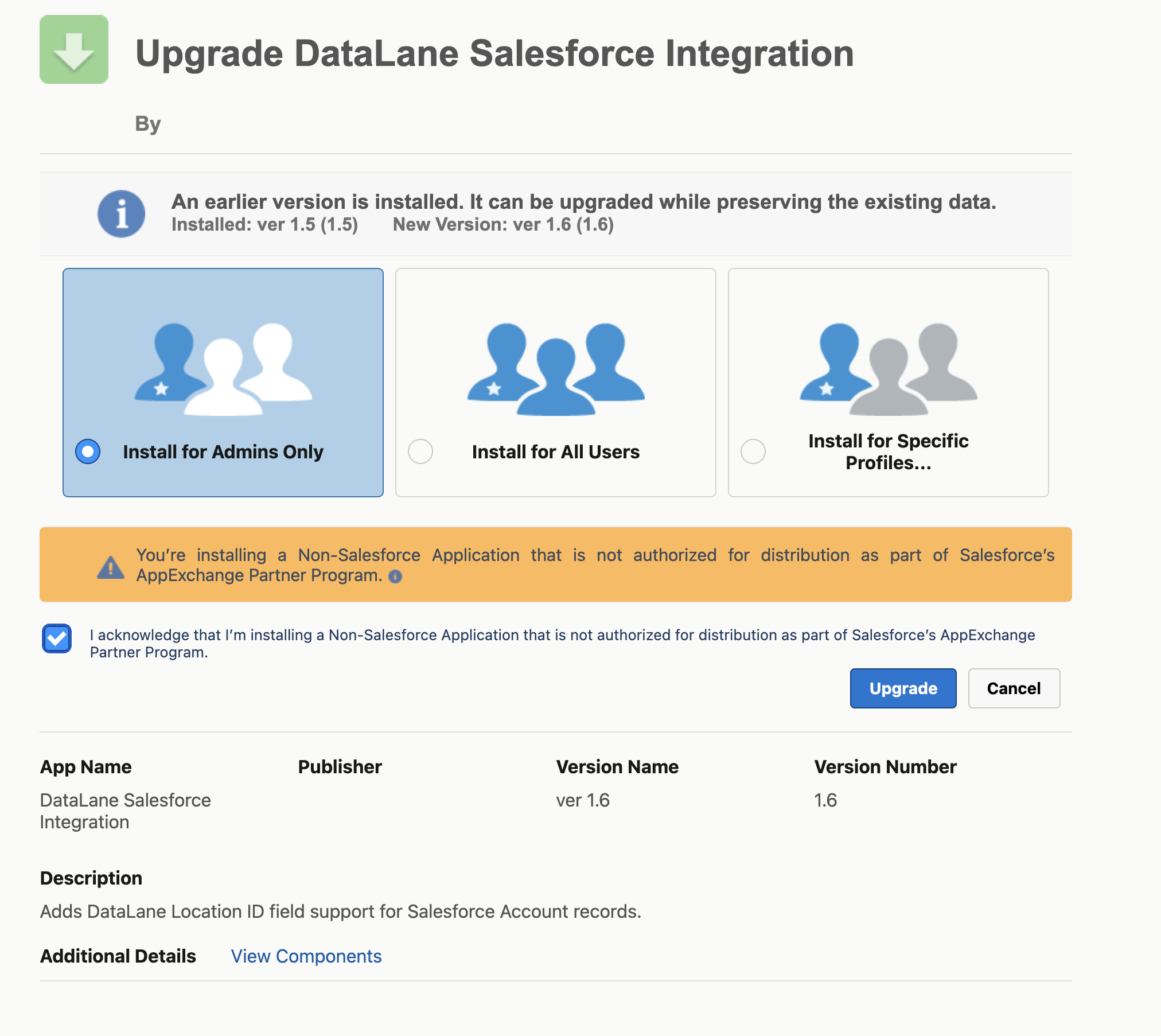
Salesforce will show that an earlier version of the DataLane Salesforce Integration package is installed and that a newer version is available. Select Install for Admins Only. Click Upgrade.
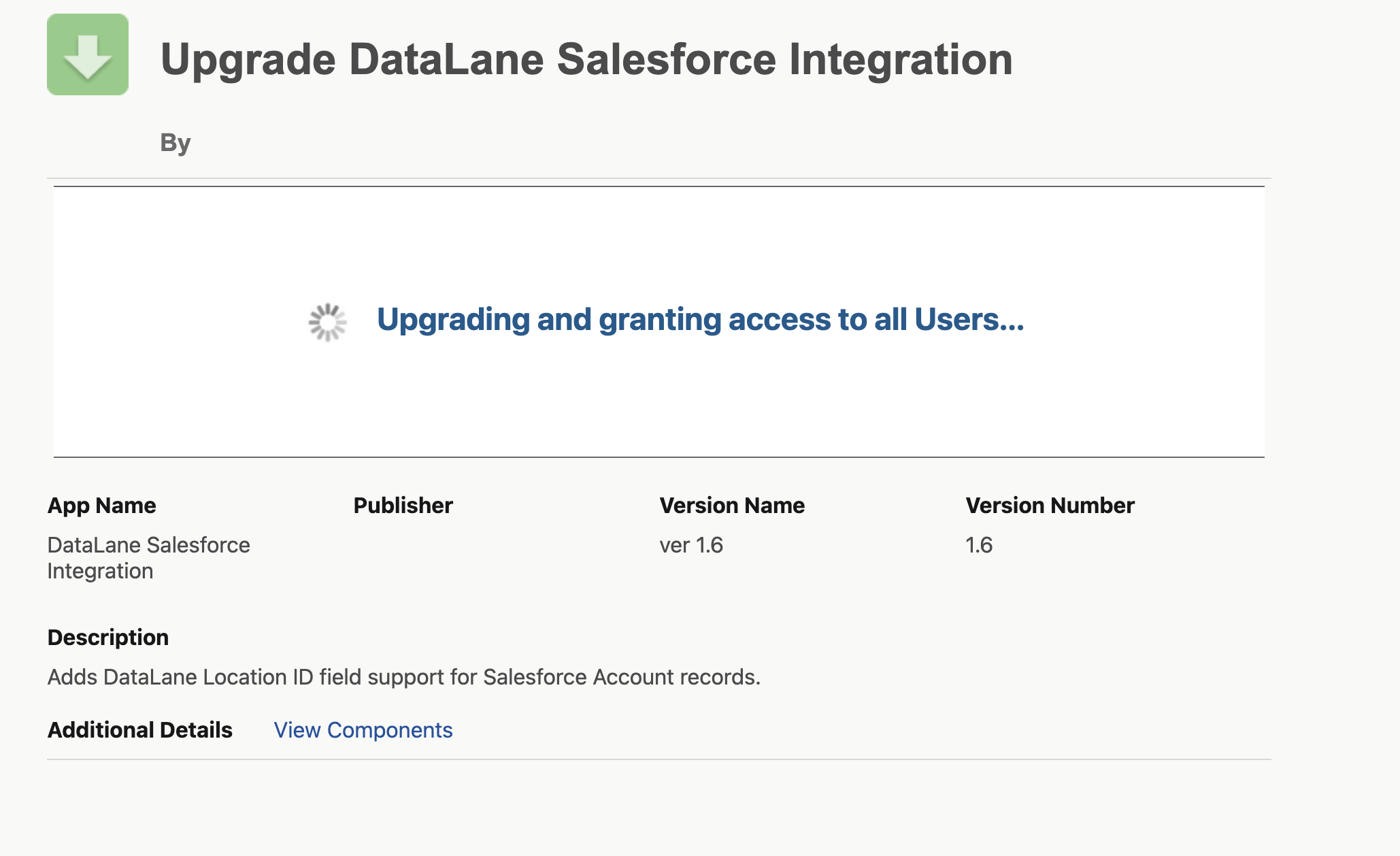
Wait for Salesforce to finish the upgrade.
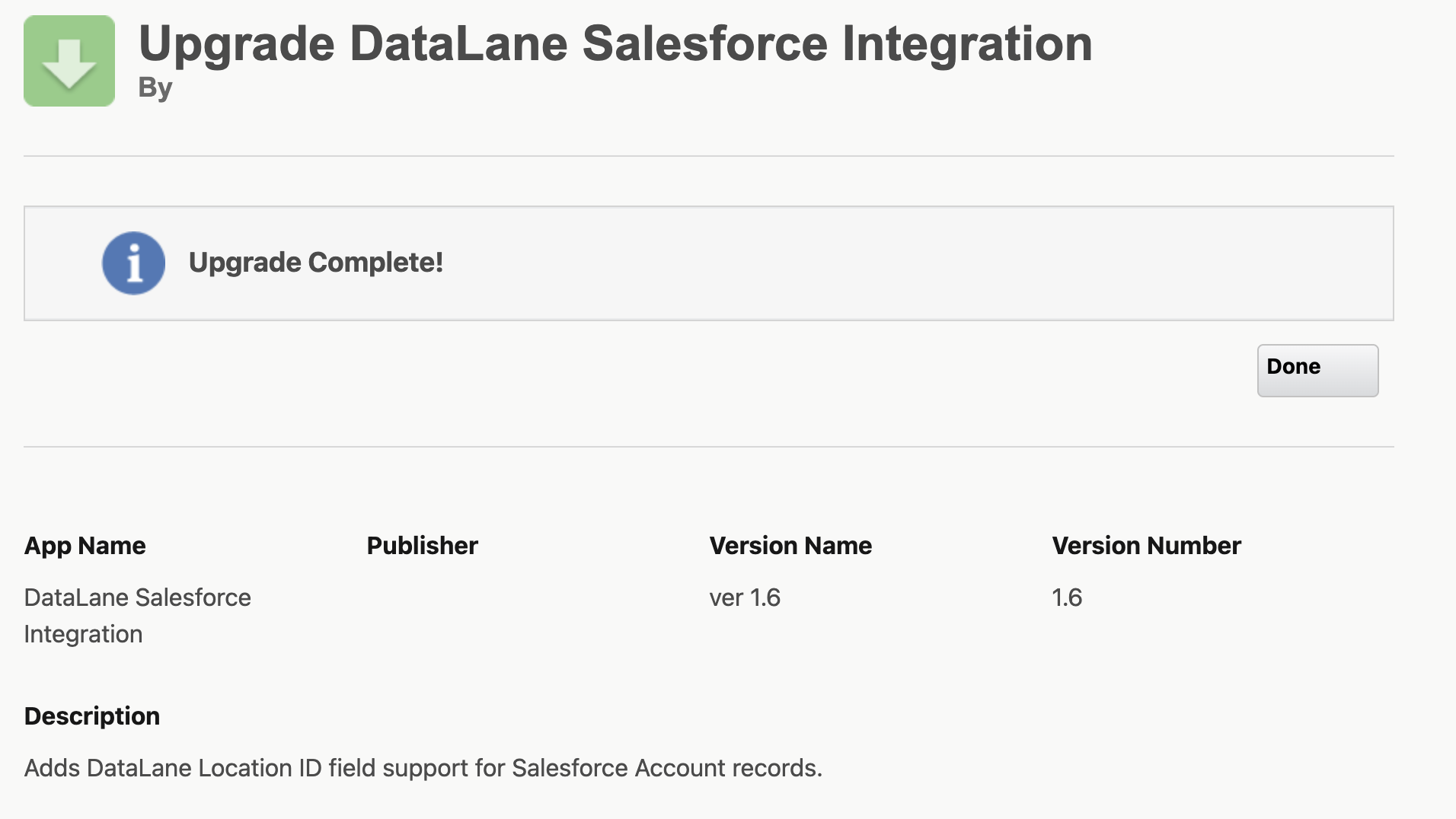
When Salesforce shows Upgrade Complete, click Done. Salesforce package upgrades usually finish in a few minutes, but may take up to 30 minutes.
4 Re-check Salesforce fields in DataLane
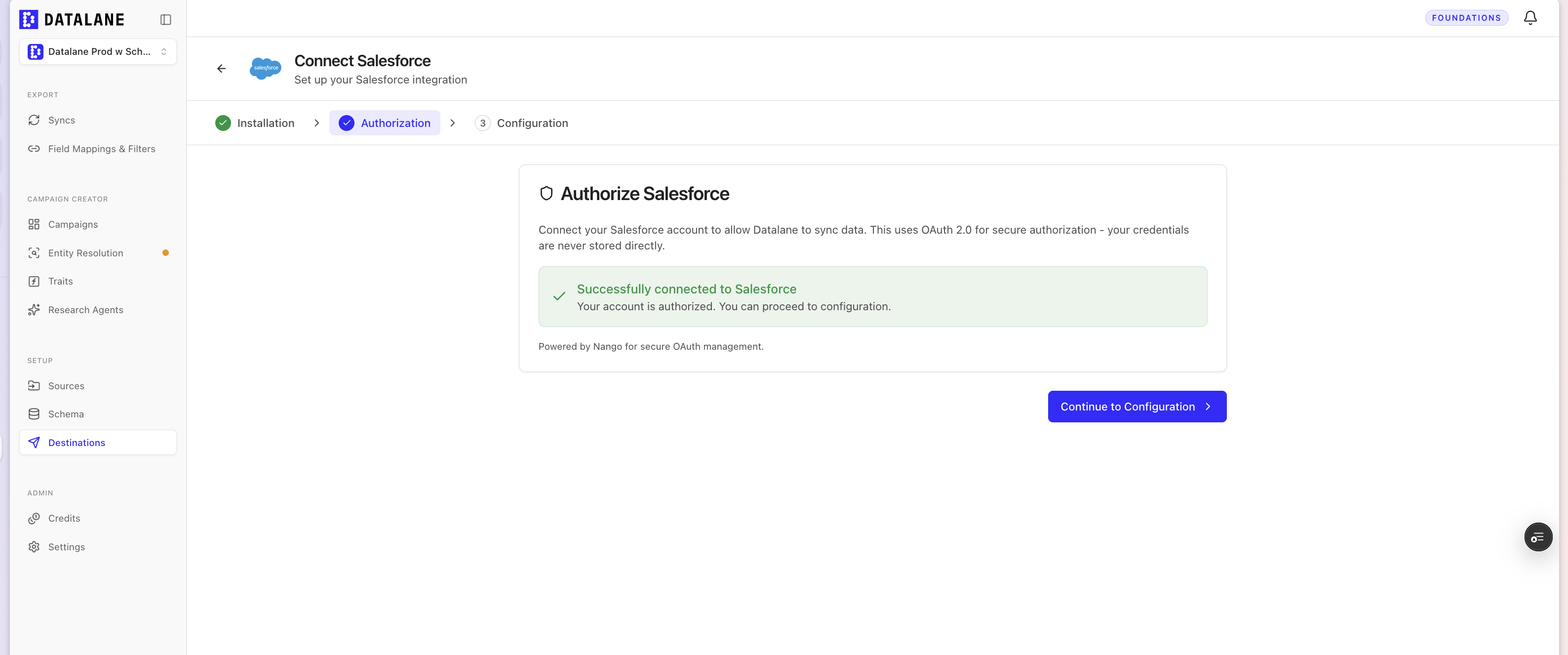
Navigate to the Authorization step in the wizard. Click Continue to Configuration.
Confirm the Account and Contact sections both show Ready. Confirm that DataLane Location ID is found on the Salesforce Account object.
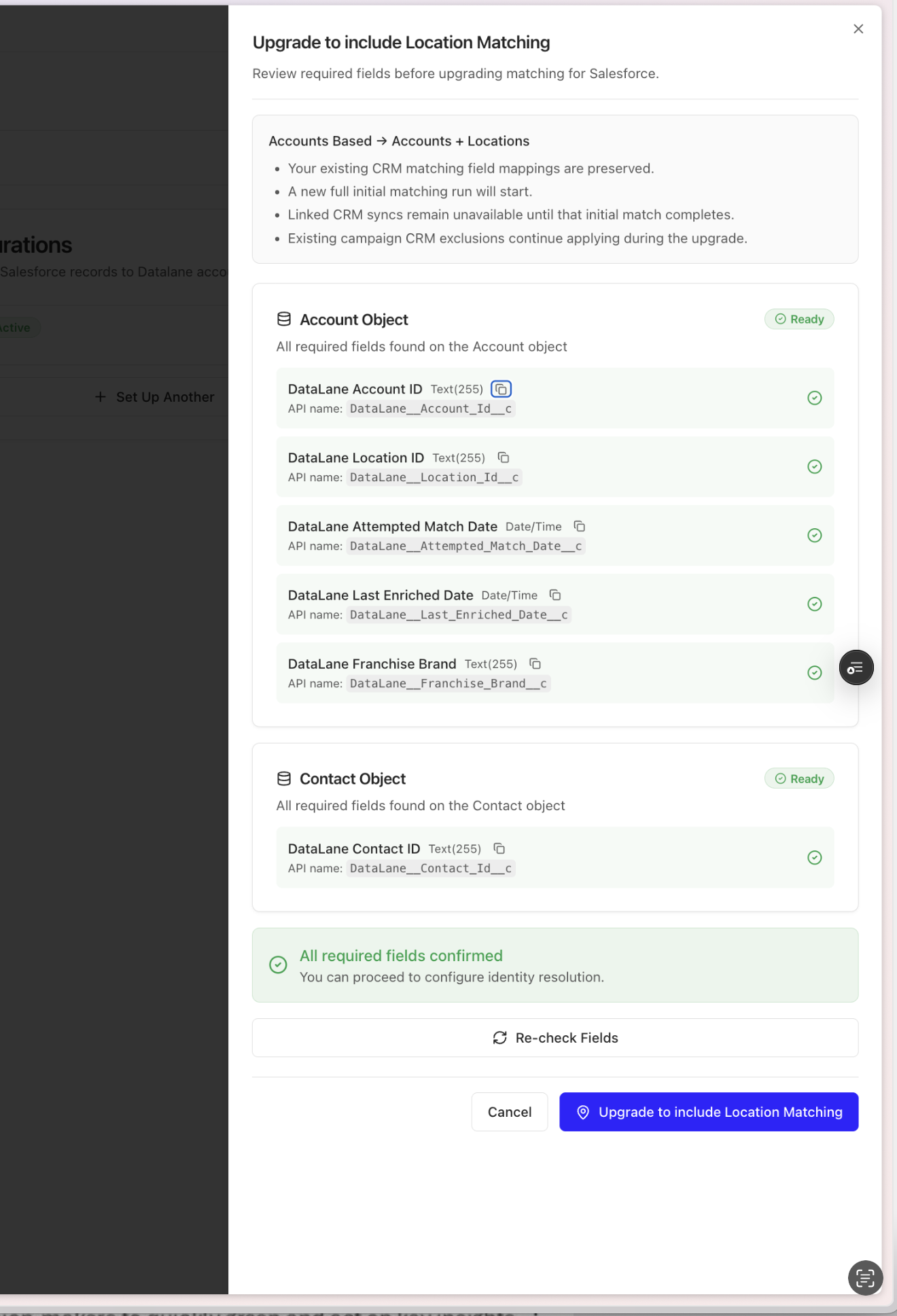
If the field is still missing:
Wait a few minutes for Salesforce metadata to finish updating, then click Re-check Fields again.
Confirm that the package upgrade completed in Salesforce Setup → Installed Packages.
Confirm that the DataLane integration user has the DataLane Integration permission set.
5 Start the location matching upgrade
Once all fields are ready, Click Upgrade to include Location Matching.
DataLane replaces the old Accounts configuration with Accounts + Locations.
NOTE: It will take a minute to persist on the UI
DataLane immediately starts a new full initial matching run. Your existing matching field mappings remain in place.
6 Wait for initial matching to complete
The upgrade is complete when the Salesforce destination shows:
Accounts + Locations
Active
A completed full matching run
At that point, location-aware matching is enabled for the Salesforce Account configuration and CRM syncs are available again.

Need help?
Contact [email protected] with as much detail as possible!
Thanks for reading 😄